Team groups: shared inboxes, "send as" and daily budgets
Group your staff into shared inboxes like Bookings or Reception, choose who sees what, and cap daily spend per group.
Team groups organise your staff, for example Bookings, Reception or Night shift. A group can share one inbox, so anyone in it can see and answer the group’s conversations, and it can have its own daily spend limit. By default, each team member only sees the messages they sent and the replies to them.
Team groups are different from contact groups. Contact groups are lists of people you text; team groups are groups of staff using WebSMS.
Create a team group
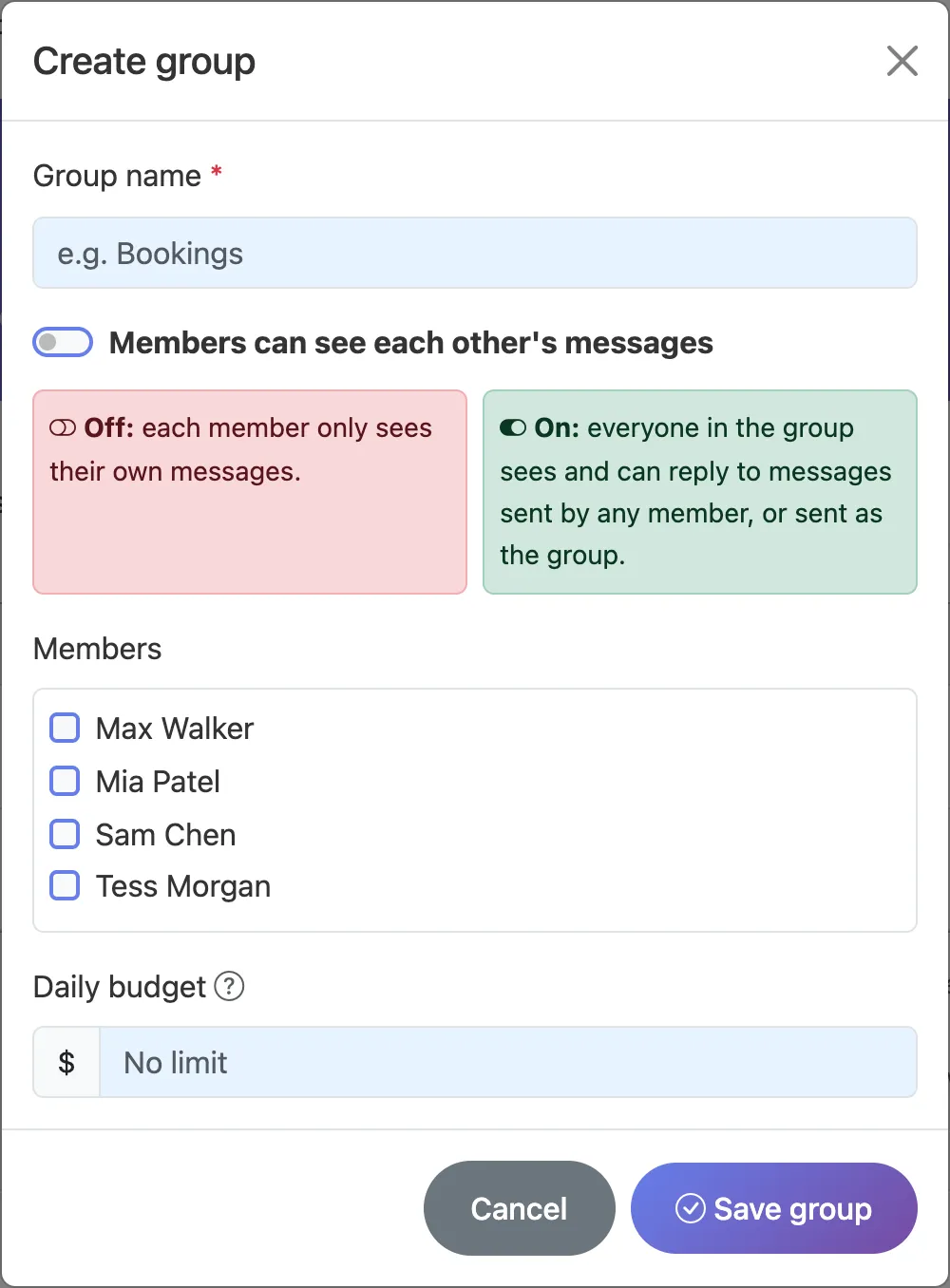
- Open Team Access → Groups and click Create Group.
- Name it, e.g.
Bookings. - Decide whether to share messages. Turn on Members can see each other’s messages for a shared inbox.
- Tick the members and, optionally, set a group Daily budget. Then click Save group.
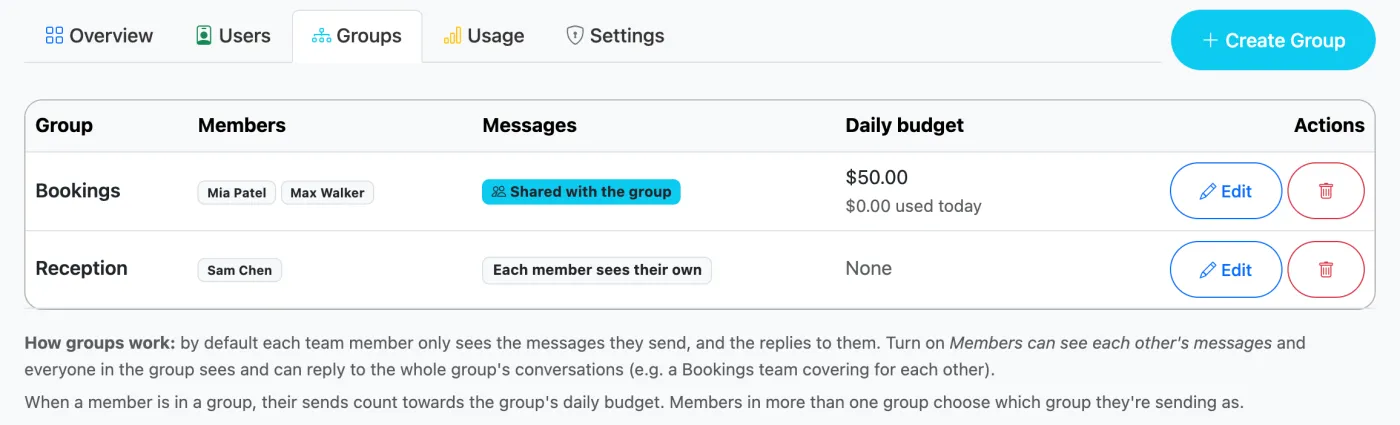
Shared inbox: how it works
| Sharing | What members see | Good for |
|---|---|---|
| Off | Only messages they sent themselves, and the replies | Staff with their own clients |
| On | Every message sent by anyone in the group, or sent as the group, plus the replies. Anyone can answer. | Bookings, reception and support desks covering for each other |
The account owner and team admins always see every conversation. Admins can also assign a conversation to a person or group from the conversation itself, and use Unassigned only in Messages to see what still needs an owner.
“Send as” a group
If someone belongs to more than one group, the Send SMS page shows a Send as choice. The message (and its replies) then belongs to that group’s shared inbox, if sharing is on, and counts towards that group’s budget. Someone in just one group sends as that group automatically.
Daily budgets
Budgets cap how much can be spent on texts per day, including GST. You can set one for each user (on the user) and for each group (shared by everyone in it).
- A send that would go over the budget is blocked with a message saying how much is left. Budgets reset at midnight.
- The account owner and team admins get an email the first time a budget is reached each day.
- Team members see their own spend in the menu bar, e.g. Today: $4.20 of $20.00.
- Budgets apply to team users only, not the account owner.
Where do reply notifications go?
When someone replies, the email notification goes to the team member who last texted that number, everyone in the group it was sent as, and anyone it’s assigned to. If nobody on the team sent it, the notification goes to the account’s email. See how replies work.
Related articles
More in Team Access
We’re a small New Zealand team and happy to help.