Team security settings, 2FA and usage reports
Require 2FA or an authenticator app, auto-logout on shared computers, view the activity log and report spend by user and group.
Team Access has a few settings that keep staff logins secure and show you who’s sending what. You can require two-factor authentication, insist on an authenticator app, log people out of shared computers automatically, and report on spend by person and group.
Require two-factor authentication
When you invite or edit a user, Require two-factor authentication is on by default. They can’t use WebSMS until they’ve set up an authenticator app or email login link. Until then, the only page they can open is the 2FA setup on their profile. Required users can’t turn their last 2FA method off.
The 2FA column on the Users tab shows who’s set up. If someone loses their phone, open the … menu next to them and choose Reset 2FA. More detail: how two-factor authentication works.
Security policy (Settings tab)
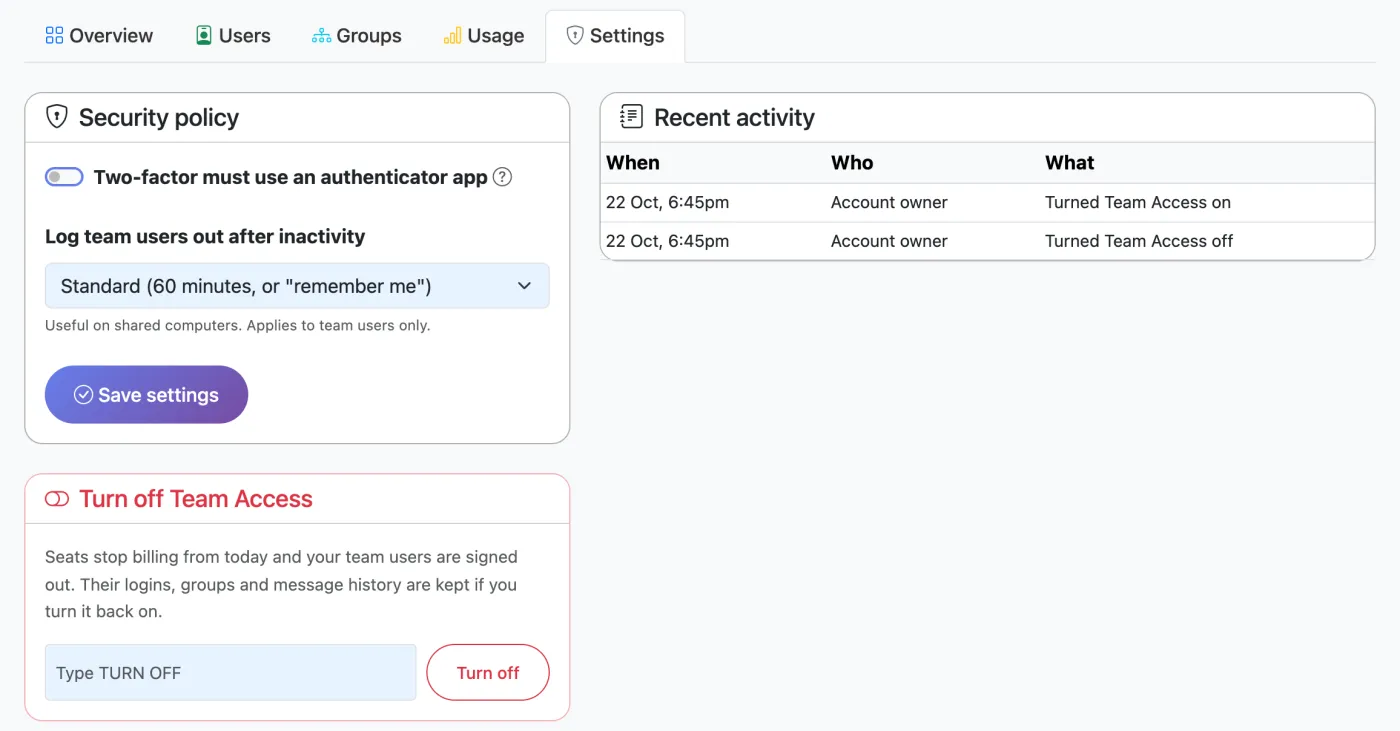
- Two-factor must use an authenticator app: email login links no longer count for users who must have 2FA. Recommended for clinics and other teams handling sensitive information.
- Log team users out after inactivity: choose 15 minutes to 4 hours instead of the standard 60 minutes (or “remember me”). This is useful on shared reception computers. It applies to team users only.
- Recent activity: the last 50 changes to your team, such as users invited, roles changed and Team Access turned on or off, with who made each change.
Usage report
Team Access → Usage shows messages, segments and spend (including GST) for any date range, broken down by user and by group. Use Today, This month or Last month for quick ranges, and Export CSV for your records or to recharge costs to departments.
The usage report covers texts sent from the members area by team users. Messages sent through the API or integrations aren’t linked to a person. Night-time and review-queue messages are counted when they’re queued. Your Transactions and tax invoices remain the official billing record.
Good practice for teams
- Give each person the fewest permissions they need. Only team admins should manage users.
- Set daily budgets for new or casual staff. See budgets.
- Disable leavers on their last day rather than sharing their login with someone else.
- Keep your own owner login protected with 2FA too, since it controls billing and API keys.
Related articles
More in Team Access
We’re a small New Zealand team and happy to help.