How to turn on two-factor authentication (2FA)
Protect your WebSMS account with an authenticator app or email login link, save your backup codes, and what to do if you lose your phone.
Two-factor authentication (2FA) means logging in needs your password plus a second step. That step is a 6-digit code from an authenticator app on your phone, or a login link sent to your email. With 2FA on, someone who learns your password still can’t get into your account, send messages or spend your credit.
WebSMS offers two methods, and you can turn on either or both:
| Method | How it works | Best for |
|---|---|---|
| Authenticator App | A 6-digit code from Google Authenticator, Microsoft Authenticator, Authy, 1Password or similar | The strongest protection. Comes with backup codes. |
| Email Verification | A one-time login link emailed to you, valid for 10 minutes | A simple option with nothing to install |
Turn on the authenticator app
- Open your profile. Click your name in the top-right corner, then Profile, and scroll to Two-Factor Authentication.
- Click Enable next to Authenticator App.
- Scan the QR code with your authenticator app. It appears in the app as WebSMS. If you can’t scan it, click Can’t scan? Enter key manually and type the key into the app instead.
- Enter the 6-digit code the app shows and click Verify & Enable.
- Save your backup codes. You’ll see 8 one-time backup codes. Click Download Codes and keep the file somewhere safe, e.g. your password manager.
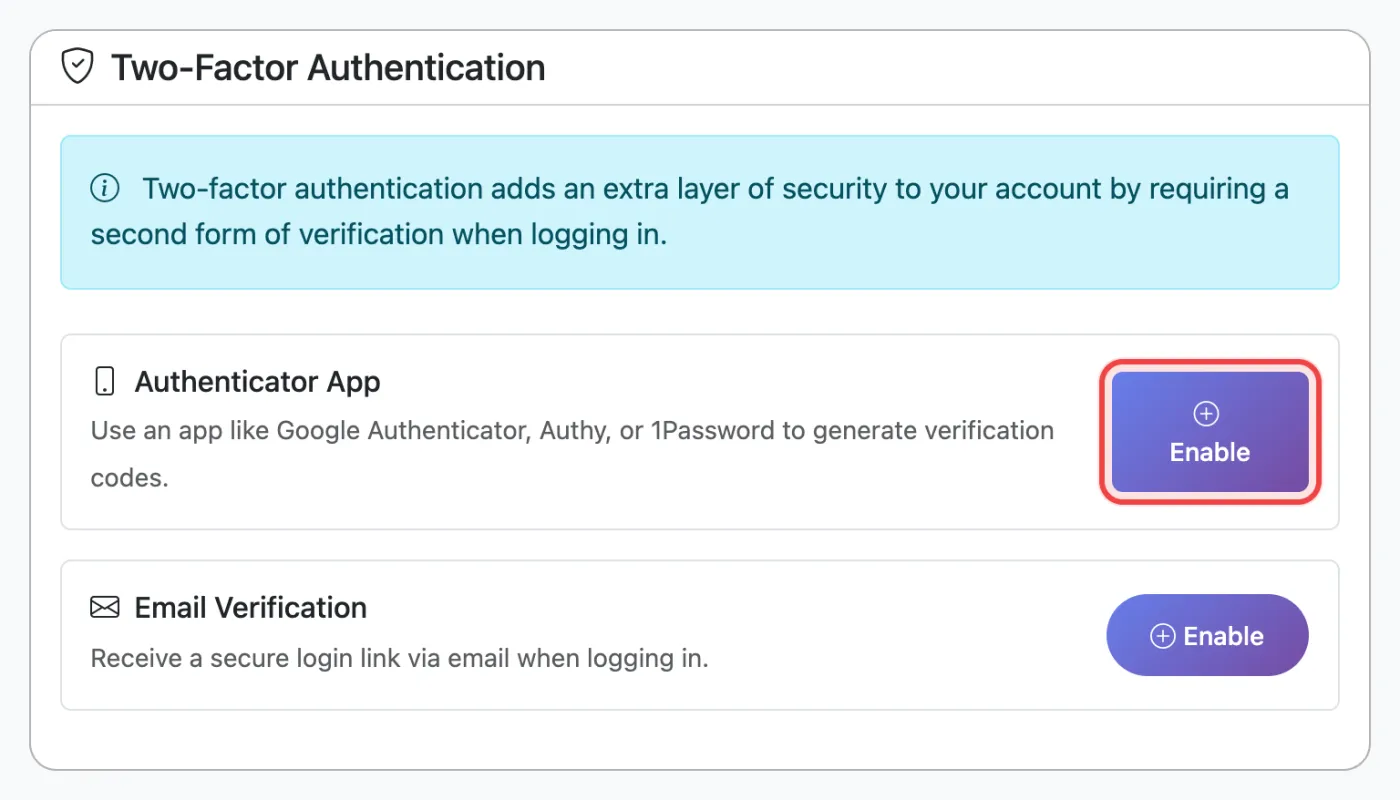
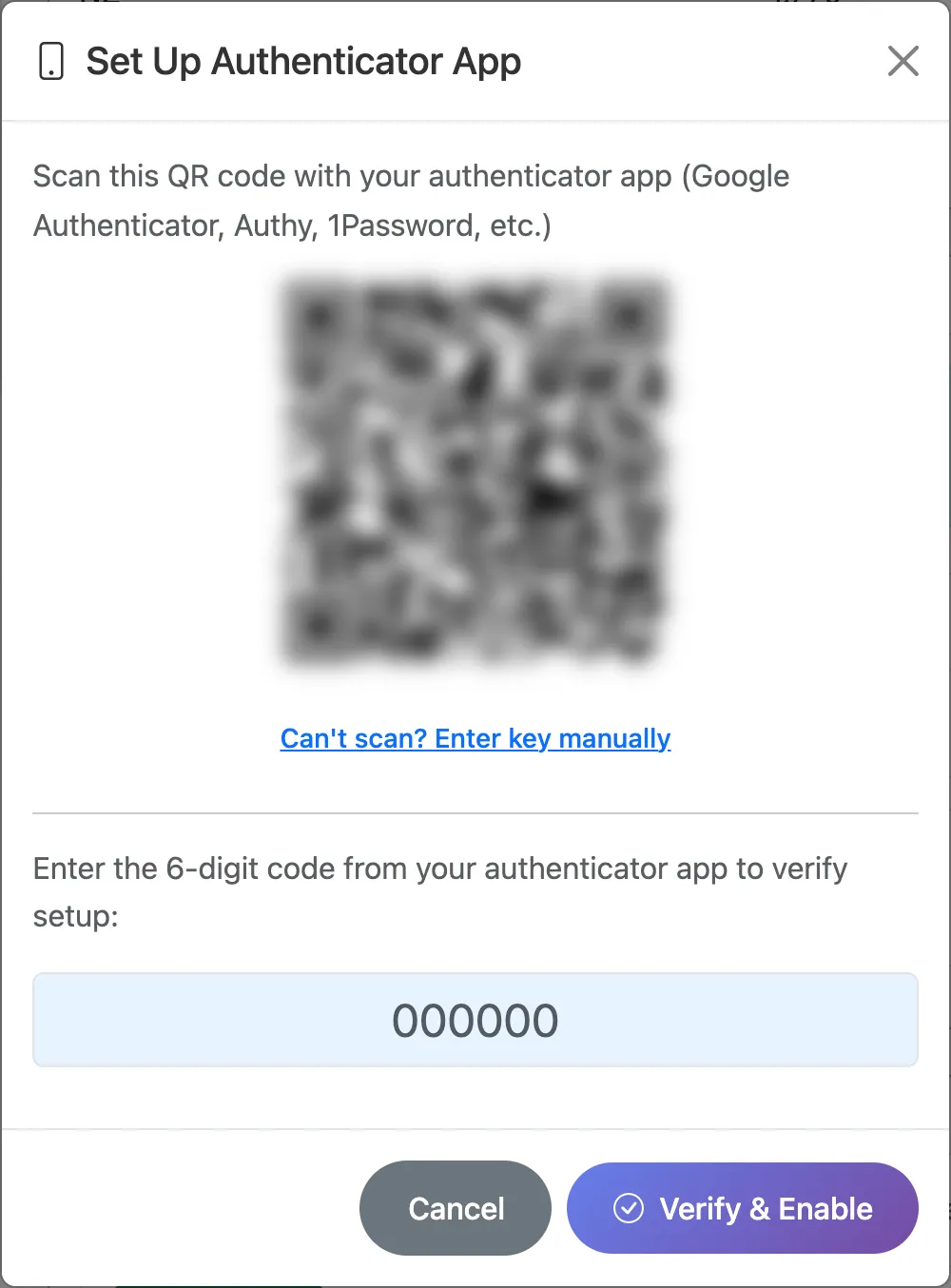
Keep your backup codes safe. If you lose or replace your phone, a backup code is how you get in. Each code works once. When you’re running low, click Regenerate next to Backup Codes to get a fresh set (your old codes stop working).
Turn on email verification
In the same section, click Enable next to Email Verification. That’s it. From then on, after entering your password you’ll be asked to send a login link to your email address.
- The email is titled WebSMS Login Verification. Click Complete Login, then Sign Me In.
- The link expires after 10 minutes and works once. You can open it on your phone even if you started logging in on your computer.
- Didn’t get it? Check your spam folder, or click Send again on the login screen.
Logging in with 2FA
After your password, you’ll see the Two-Factor Authentication screen. Enter the code from your app (it submits automatically once all 6 digits are in), or switch to the Email Link tab if you’ve turned that on too. To use a backup code, click Use a backup code instead.
Ticking Remember me on the login page keeps that device signed in for 30 days without asking again. You can see and sign out remembered devices under Profile → Active Sessions.
Tip: Turn on both methods. If your phone is lost or flat, you can still get in with the email link as well as your backup codes.
Lost your phone?
- Log in with your password, then click Use a backup code instead and enter one of your saved codes. If you also turned on email verification, you can use the Email Link tab instead.
- Once you’re in, go to Profile → Two-Factor Authentication, click Disable next to Authenticator App (you’ll need your password), then enable it again with your new phone.
- No backup codes and no email verification? Contact support and we’ll verify who you are before we reset it.
After 5 wrong codes in 15 minutes, logging in is paused for 15 minutes.
Team Access users
If your business uses Team Access, each team member has their own login and sets up their own 2FA under their profile. Team admins can require 2FA for any user, and can insist on the authenticator app. If a team member loses their phone, a team admin can use Reset 2FA on that user, and they’ll set it up again at their next login.
Related articles
More in Billing & Account
We’re a small New Zealand team and happy to help.