How to send an SMS
Send a text to one person or a list of numbers from the Send SMS page: enter the numbers, write your message, check the cost and send.
You can send a text to one person or a whole list of numbers from the Send SMS page. Enter the numbers, type your message, check the cost estimate, then send. It takes less than a minute.
Before you start: you need credit in your account. If your balance is low, use Add Funds in the top menu first. See how to add funds.
1. Enter the phone numbers
- Open Send SMS. Click Send SMS in the top menu.
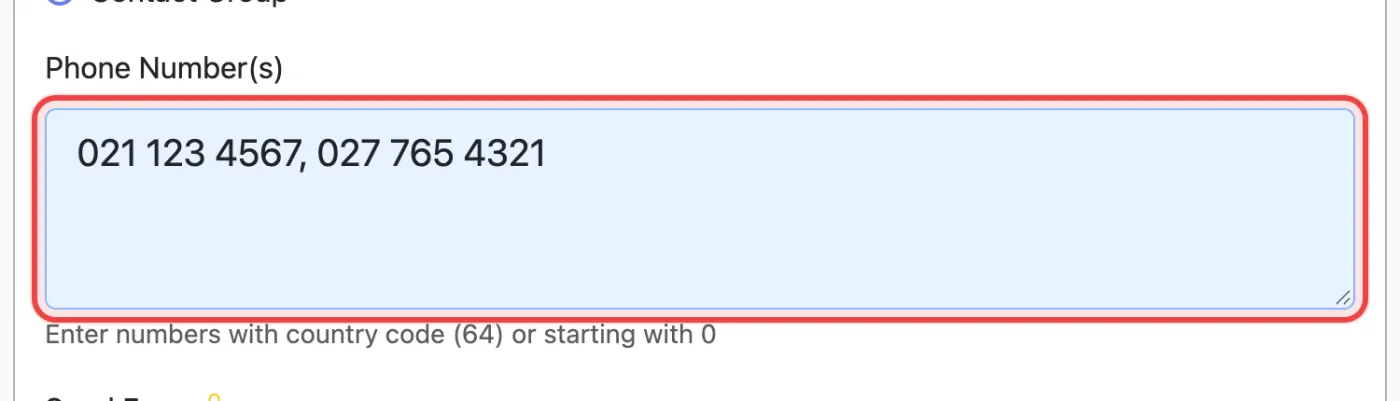
- Choose who to send to. Leave Phone Number(s) selected to type numbers in, or choose Contact Group to send to a group you’ve already set up.
- Type the numbers. Put one number per line, or separate them with commas. NZ numbers can start with
0(e.g.021 123 4567) or with the country code64(e.g.64211234567).
2. Write your message
Type your message in the Message box. The counter underneath shows how many characters you’ve used and how many SMS segments the message will take.
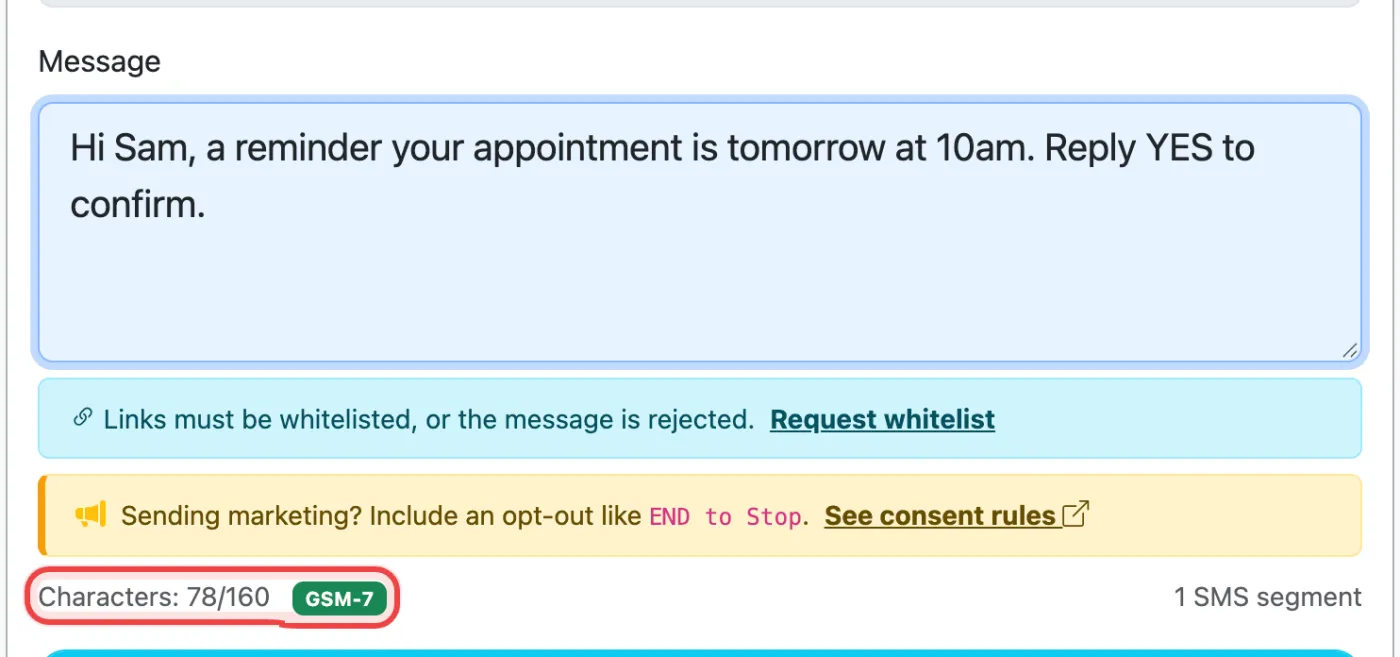
- Up to 160 characters of standard text is one SMS. Longer messages are split into parts of 153 characters, and each part is charged separately.
- Emojis and special characters make a message Unicode, which fits only 70 characters per SMS. By default they’re converted to plain text as you type. See how message length affects cost.
- Links must be on your whitelist or the message is rejected. Whitelist your domain before you send.
Sending marketing? Promotional messages must include a way to opt out, for example END to Stop. Reminders and one-off service messages to your own customers usually don’t need one. Transactional vs marketing explained.
3. Check the cost and send
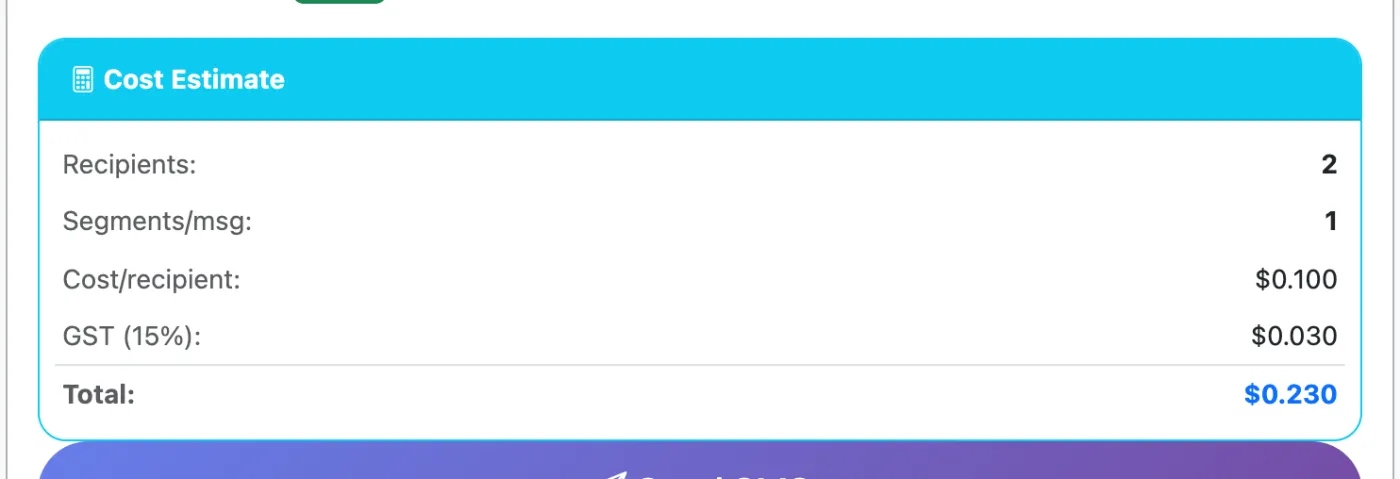
The Cost Estimate panel updates as you type. It shows the number of recipients, segments per message, cost per recipient, GST and the total.
Click Send SMS. A confirmation shows the estimated cost. Click OK to send.
4. Check delivery and replies
Open Messages in the top menu to see what you’ve sent, the delivery status of each message, and any replies. Replies appear in the same conversation, so you can reply straight from there. See what the delivery statuses mean and how replies work.
Tip: Send a test to your own mobile first when you’re sending to a big list. It’s the easiest way to check the wording and any links.
Related articles
More in Sending Messages
We’re a small New Zealand team and happy to help.