How to add funds to your account
Top up by card (instant) or bank transfer (no fee), set up auto top-up, and find your tax invoices.
WebSMS is prepaid: you add credit, and each message is deducted as you send. You can top up by credit or debit card (instant) or by bank transfer (no fee, credited within one business day), and you can set up automatic top-ups so you never run out.
Before your first top-up
To keep our shortcodes free of spam and fraud, new accounts go through a short one-off check the first time they open Add Funds:
- Verify your mobile number with a 6-digit code (NZ or Australian mobiles).
- Verify your identity with a quick selfie check.
- Add an NZ or Australian payment card. A one-off $2.00 charge confirms the card and is added to your balance, so it isn’t lost.
Why do we ask? See why we verify your identity. Using a card from another country? Contact us and we’ll verify your account manually.
Top up by card
- Open Add Funds from the top menu.
- Choose an amount. Pick $10, $25, $50 or $100, or type your own (minimum $10, maximum $1,000 per payment).
- Choose Credit/Debit Card, then use a saved card or enter a new one. Tick Save card for future payments to make next time quicker.
- Check the Payment Summary and click Proceed to Payment. Your bank may ask you to approve it. Credit appears immediately.
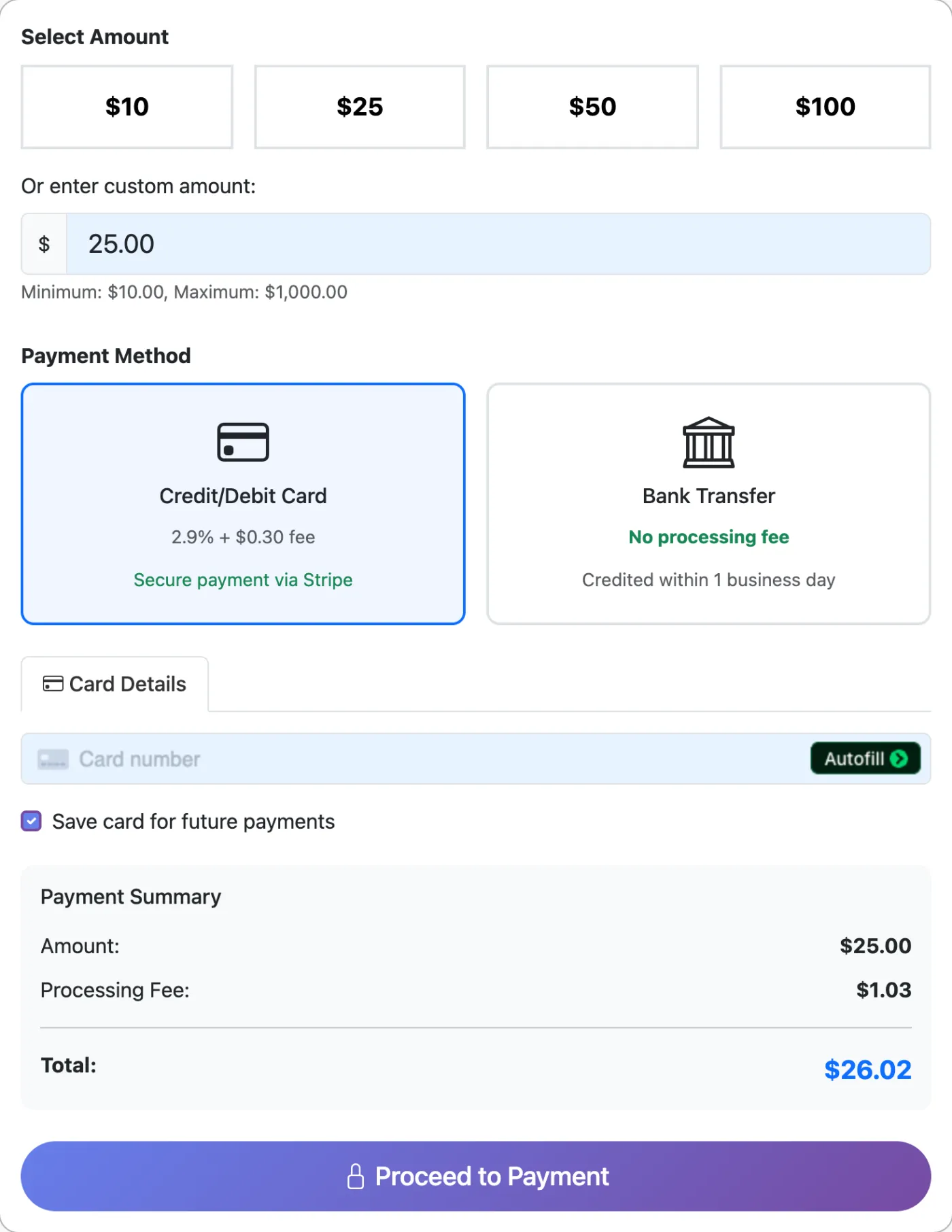
- Card payments have a 2.9% + $0.30 processing fee, shown before you pay.
- Your first card payment is limited to $100. Contact support if you need more straight away.
Top up by bank transfer (no fee)
Full guide: add funds by bank transfer.
- Choose Bank Transfer on the Add Funds page and enter the amount ($10 to $50,000).
- Copy the account number and your reference shown on screen. Your reference is
WSfollowed by your customer number, e.g.WS1234. - Pay from your bank, putting the reference in the Reference, Particulars or Code field.
- Confirm on the page that you’ve paid. We credit your account within one business day and email you a receipt.
Always include your WS reference. It’s how we match the payment to your account. Without it, crediting takes longer.
Never run out: auto top-up
Go to Add Funds → Manage Cards & Auto Top-up (or Transactions → Auto Top-up), tick Enable Auto Top-up, set the balance that triggers it (e.g. $10) and the amount to add, choose a saved card and click Save Settings. This is especially useful if you send automatically through the API, where running out of credit stops messages.
GST and invoices
- Top-ups add credit. For NZ customers, GST is charged on each message as you send it, so the cost estimate on the Send SMS page includes GST.
- Find every payment and send under Transactions. Click a top-up row to open its tax invoice, which you can print or save as PDF. Use Export to CSV for your accountant.
- Credit doesn’t expire, but it’s non-refundable, so top up what you expect to use.
Related articles
More in Getting Started
We’re a small New Zealand team and happy to help.